 SharePoint Elegance
Documentation
Home/Documentation
Accordion Component
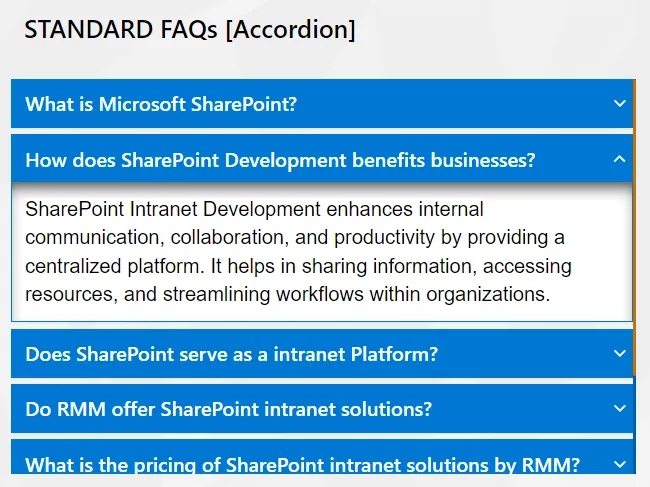


Optimize your page space with our Accordion component, featuring dynamic content construction for multi-purpose use. This flexible tool allows administrators to organize complex information into expandable panels with easy audience targeting configurations.
- Enable Multiple Tab Expand: Option to enable opening multiple tabs or not.
Best suitable for:
- FAQs
- eBooks
- KB Articles
- Instruction Manuals
Album Component
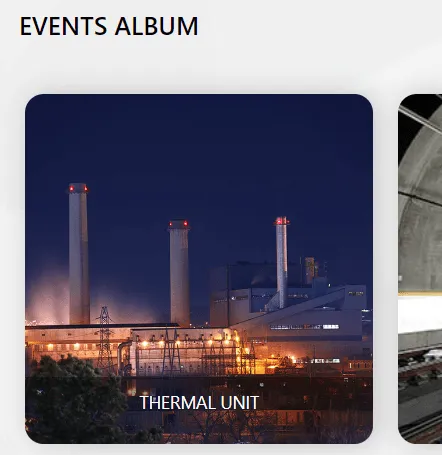


Our Album component displays beautiful thumbnail galleries, grouping multiple photos by specific events for a streamlined visual experience. It features simple management options to record album-specific details and control how your media is showcased.
- Display Type: Option to render the album intuitively with a range of display choices, including:
- Classic
- Grid
- Slider
Best suitable for:
- Events/Occurrences Images Collection
- Products Catalog
- News Images Gallery
- Project specific photos
Banner Slider Component
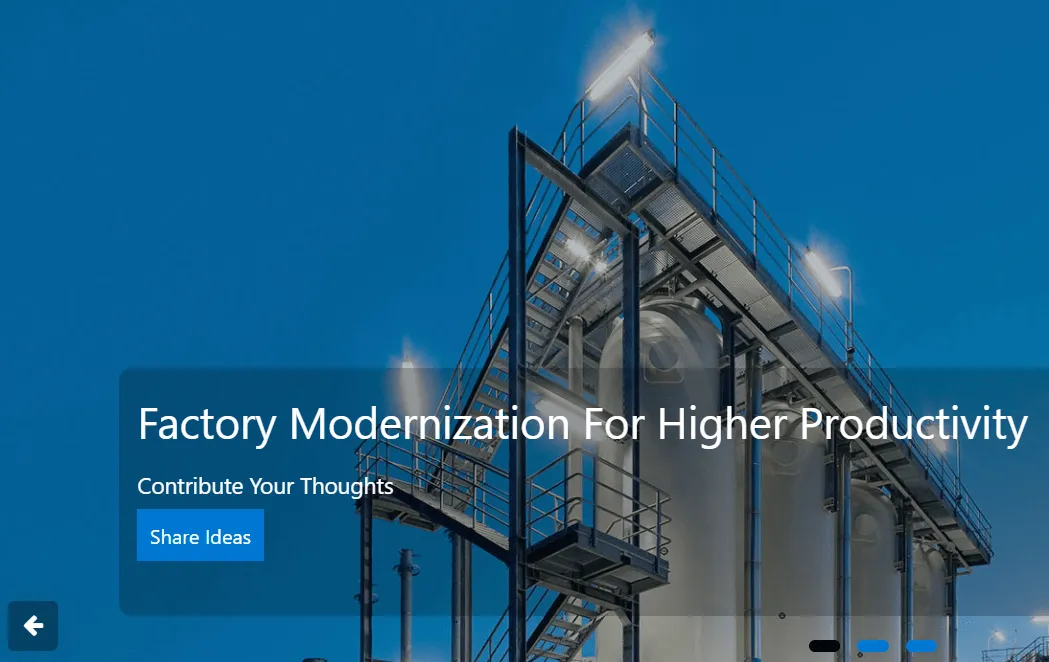


The Banner Slider component enables full-width, end-to-end image displays on SharePoint pages for maximum visual impact. It includes easy-to-configure slide text and call-to-action buttons, ensuring a 100% responsive and adaptive experience on any device.
- Auto Slide: Enable or disable automatic sliding.
- Transition Speed: Adjust slide duration and delay intervals.
- Navigation Controls: Option to show or hide arrows and dots.
- Navigation Arrow Alignment: Display navigation buttons based on the banner layout. Options include:
- Bottom
- Middle
- Target URLs: Each banner can link to a specific page or external site.
Best suitable for:
- Announcements
- Home Slider Option
- Products Catalog
- News & Events Display
- Project Photos
Date Carousel Component

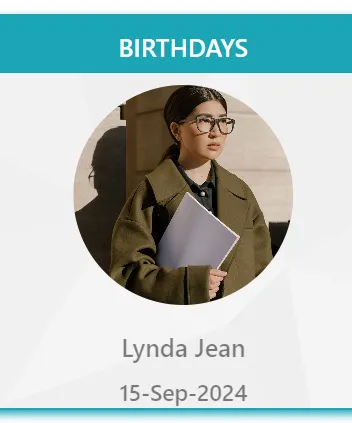

Celebrate your team with the Date Carousel component, which automatically populates employee birthdays and anniversaries from a SharePoint list. It offers multiple display styles and dynamic settings to showcase personalized celebration messages.
- Show Date Range: Pull date details from today to the next specific number of days (default is 7 days).
- Slide Duration: Set the slide idle timing for image display (default is 5 seconds).
Best suitable for:
- Date Display
- Anniversary Display
- Date-based Image Display
- Org Milestones Display
- Date-based Slideshow
Calendar Component
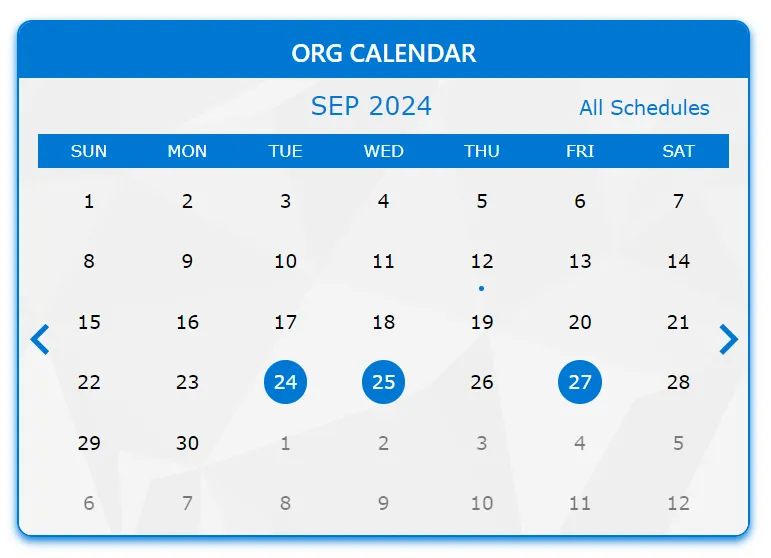

The Calendar component provides a clear, date-based display of company events or project schedules. It features a summary view for daily or monthly planning, making it the ideal tool for tracking important organizational dates and reminders.
- Category Filter: Select events based on specific category conditions and values.
Best suitable for:
- Events Calendar
- Department Calendar
- Day/Month Planner
- Date-based reminders
Cards View Navigation
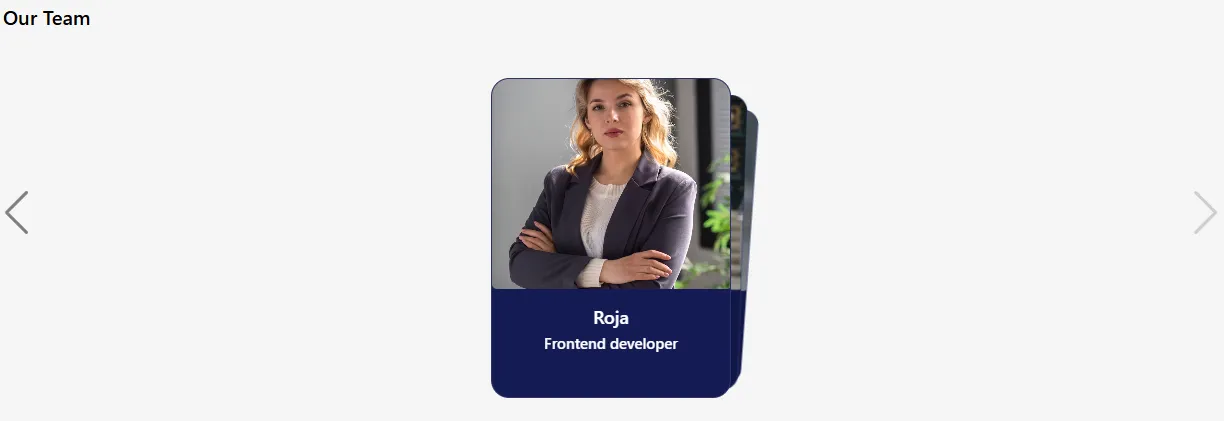
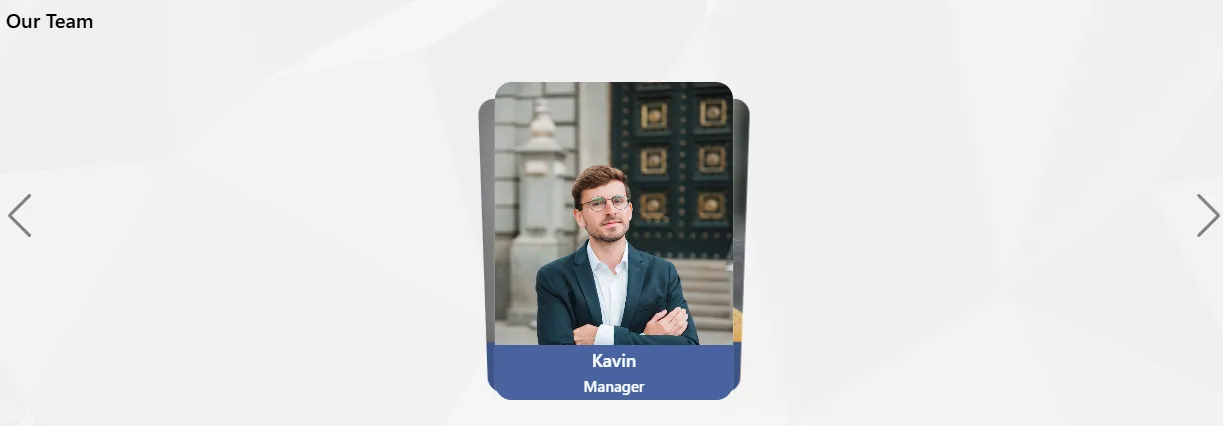

Cards View Navigation provides a clean, modern way to browse content in a card-based layout for modern SharePoint Online intranets. Each card displays a title, image, and supporting text, enabling quick access to key intranet pages and resources.
- Data Binding: Connect cards to any SharePoint list or library.
- Card Style Options: Choose card backgrounds, layouts, and themes.
- Image & Icon Support: Display thumbnails, icons, or images.
- Action Target: Open SharePoint pages, internal routes, modals, or external links.
Best suitable for:
- Team Member Cards
- Department Navigation
- Quick Links Panel
- Project or Category Cards
- News & Announcements
- Policy & Document Shortcuts
- Application / Tool Launchpad
- Knowledge Base Categories
- HR Services & Forms Access
- Training & Learning Modules
- Events & Campaign Highlights
- Employee Benefits Overview
- Location / Office Information Cards
- Vendor or Partner Directory
Countdown Timer
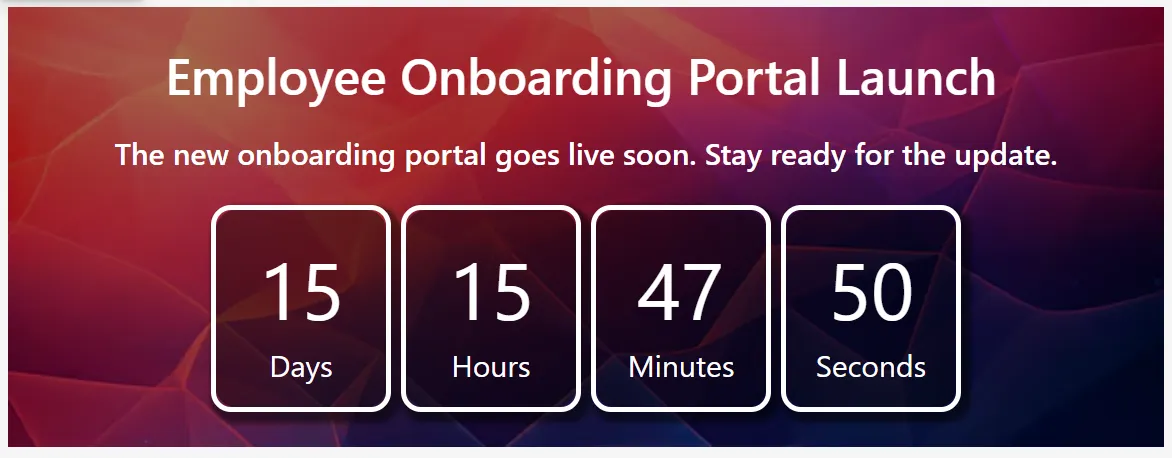
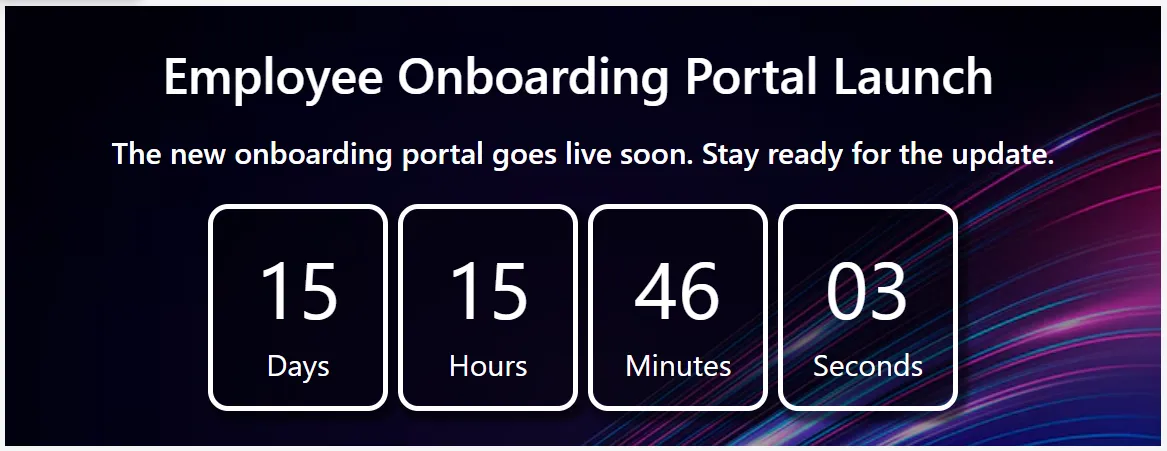
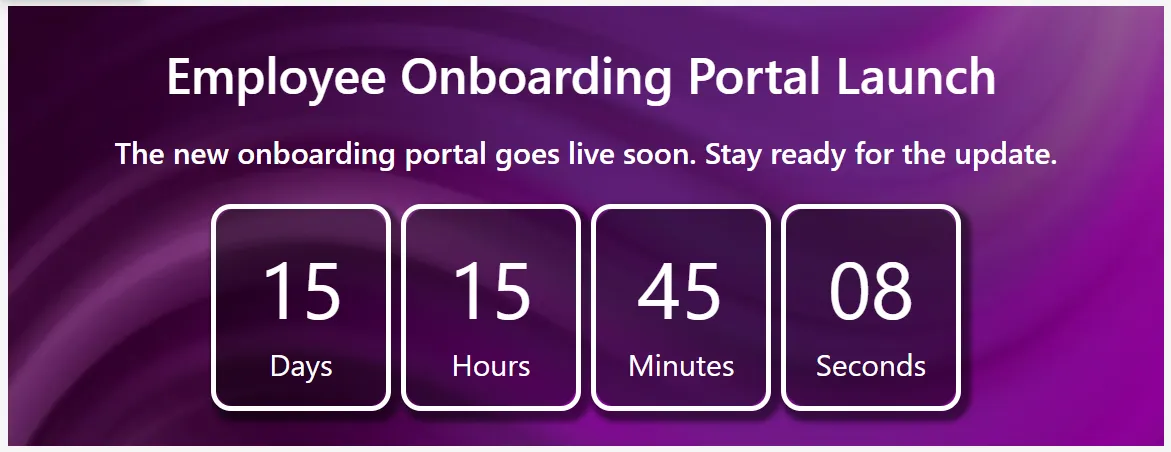
Create urgency and build excitement with our dynamic Countdown Timer web part for SharePoint intranet sites. This component displays remaining Days, Hours, Minutes, and Seconds in a modern card layout based on a target date. It is ideal for launch announcements, project go-live dates, webinars, or internal milestones.
- Title: Primary heading displayed above the countdown.
- Secondary Text: Optional subtitle or announcement message.
- Launch Date: Target date and time for the countdown logic (supports count-up if date is in the past).
- Post Action: Action after countdown reaches zero, such as a splash message, redirect, or hide the web part.
- Redirect Link: Destination URL for redirection when the post-action is set to redirect.
- Banner Images (1-3): Background images to enhance visual appeal in the countdown layout.
- Display Order: Controls sorting in multi-item scenarios or lists.
- Status: Active or Inactive toggle to control visibility.
Best suitable for:
- Product Launch Countdown
- Intranet Portal Release / Go-Live Timer
- Event or Webinar Countdown
- Project Go-Live Announcement
- Training Program Start Timer
- Organization Milestone / Anniversary Countdown
Content Box
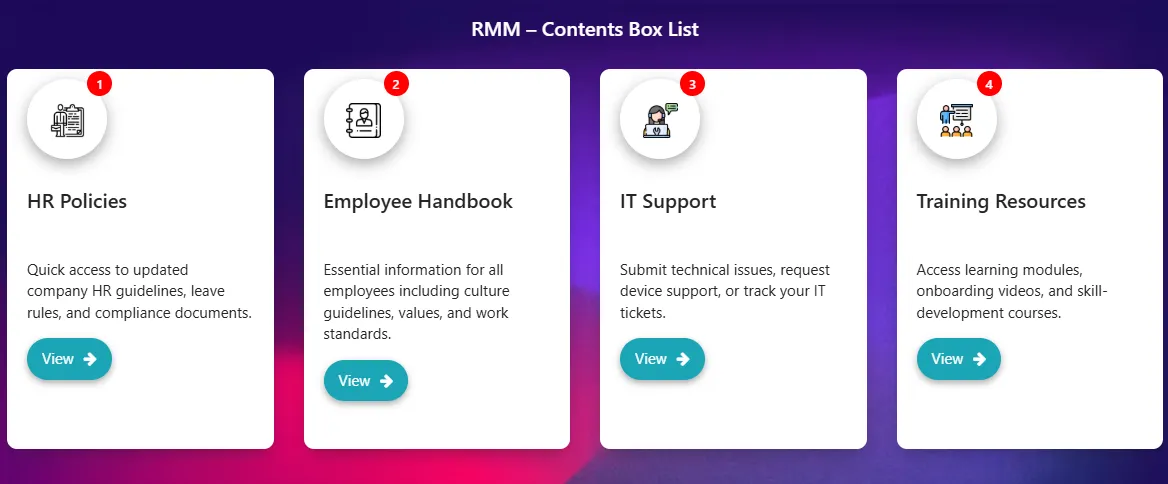
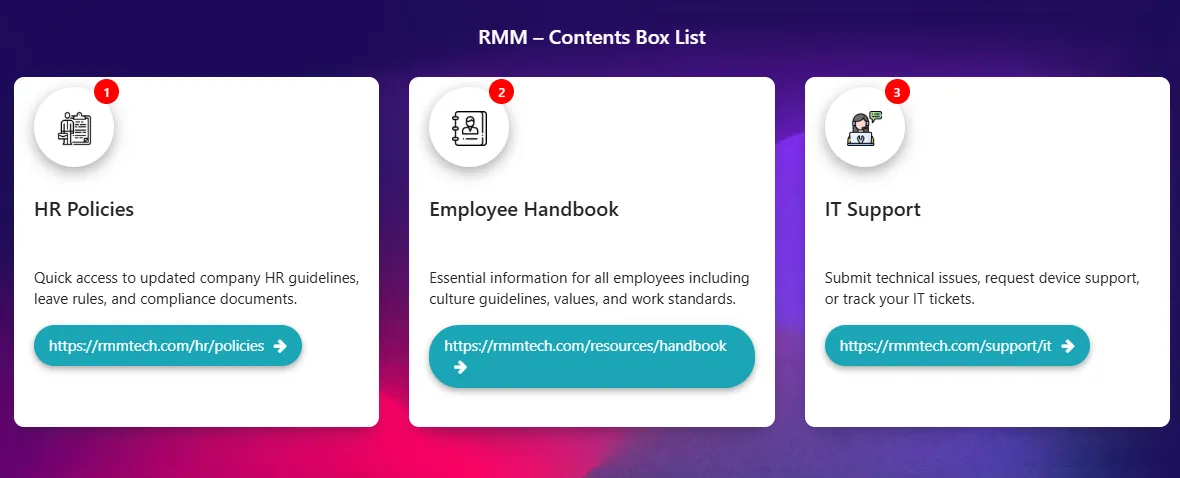
Our Content Box Cards provide dynamic, clickable navigation to make your SharePoint intranet fast and intuitive. Each card features an eye-catching icon, bold title, concise description, and a clear action button. Everything is pulled live from a single SharePoint list, allowing administrators to update, reorder, add, or hide items instantly without editing the page.
- Title: Main heading or card name (e.g., "Leave Policy", "IT Helpdesk").
- Description: Short supporting text (1-2 sentences) shown below the title.
- Icon URL: Link to custom icon or image (PNG, SVG, Fluent UI icon, or emoji).
- Redirect Link: Destination URL for internal SharePoint pages, documents, or external sites.
- Button Text: Label on the call-to-action button (e.g., "View Details", "Download").
- Badge Number / Order: Optional badge for tags like "New" or "Hot" and custom sorting.
- Background Style: Custom card background using solid colors, gradients, or subtle images.
- Display Order: Numeric value to control the sequence of cards.
- Status: Active or Inactive toggle to show or hide the card.
Best suitable for:
- HR Policies & Forms Quick Access
- Employee Handbook Navigation
- IT Support & Self-Service Shortcuts
- Training & Learning Catalog
- Department & Service Hubs
- Quick Links Dashboard / Employee Essentials
- Resource Library Categories
Coverflow Navigation

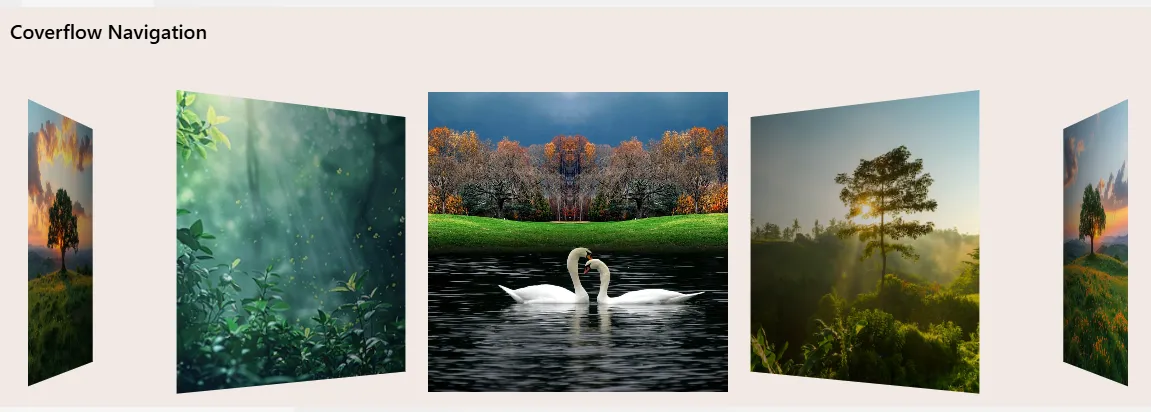
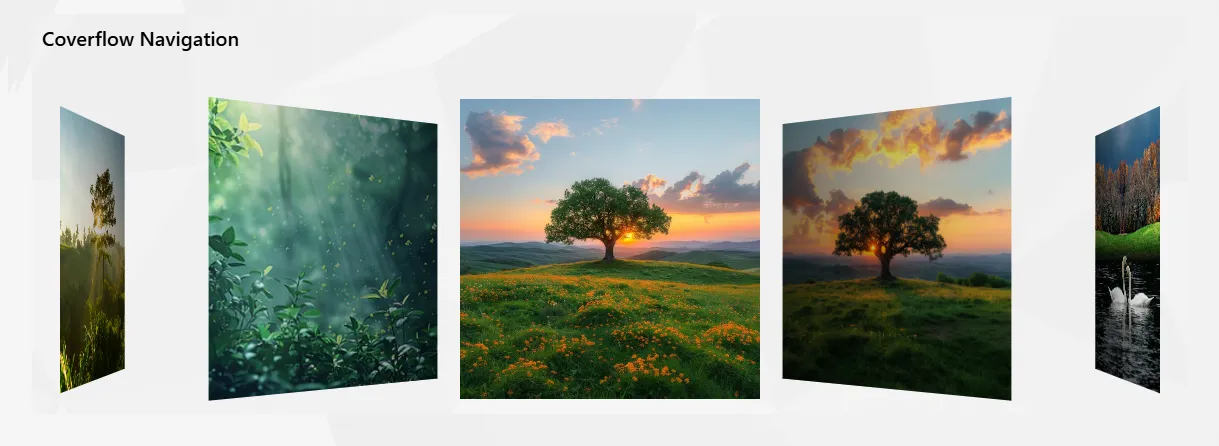
Elevate your SharePoint intranet with interactive 3D-style Coverflow navigation. This component highlights featured pages, internal campaigns, news, or curated content in a smooth, horizontal carousel. With centered focus and perspective depth, it provides a premium visual experience for content discovery.
- Category Filter: Show items from specific categories only (e.g., News, Campaigns, Events).
- Auto Rotate: Enable automatic gentle cycling through items.
- Center Focus: Keep the active item prominently centered with visual emphasis.
- Banner Images: Upload or link high-quality images for each coverflow card.
- Display Order: Numeric sorting to control the sequence of items.
- Status: Active or Inactive toggle for individual item visibility.
Best suitable for:
- Homepage Featured Navigation
- Internal Campaign Highlights
- Department or Business Unit Showcases
- Announcement & Promotion Banners
- Curated Content Discovery
Events
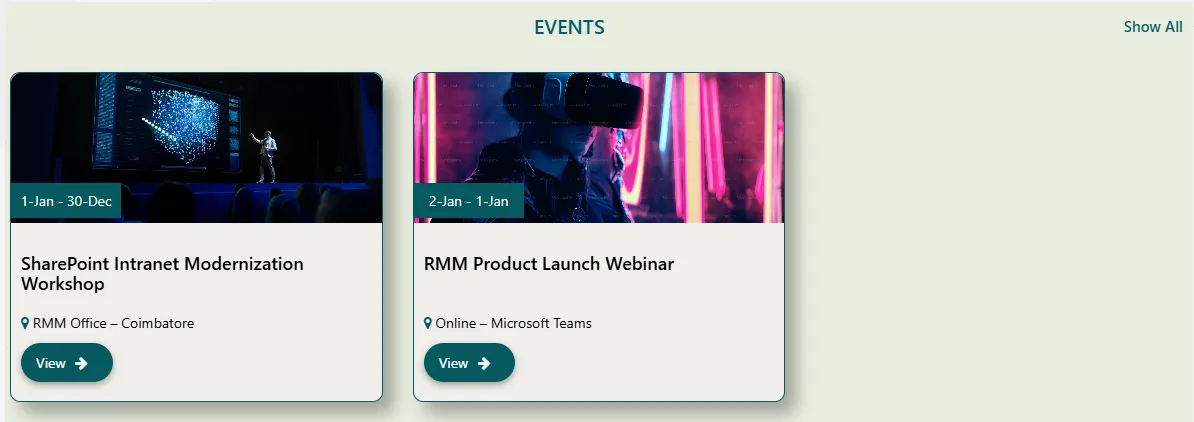
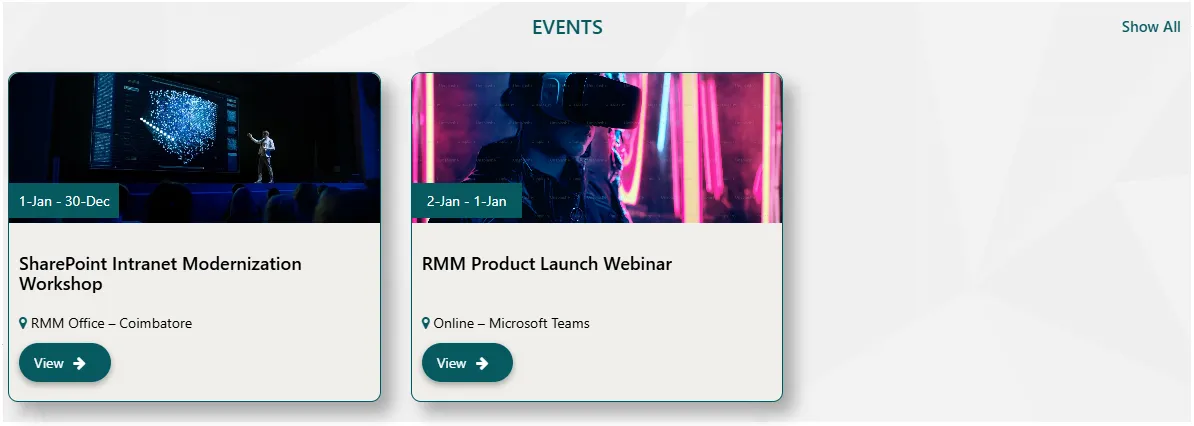
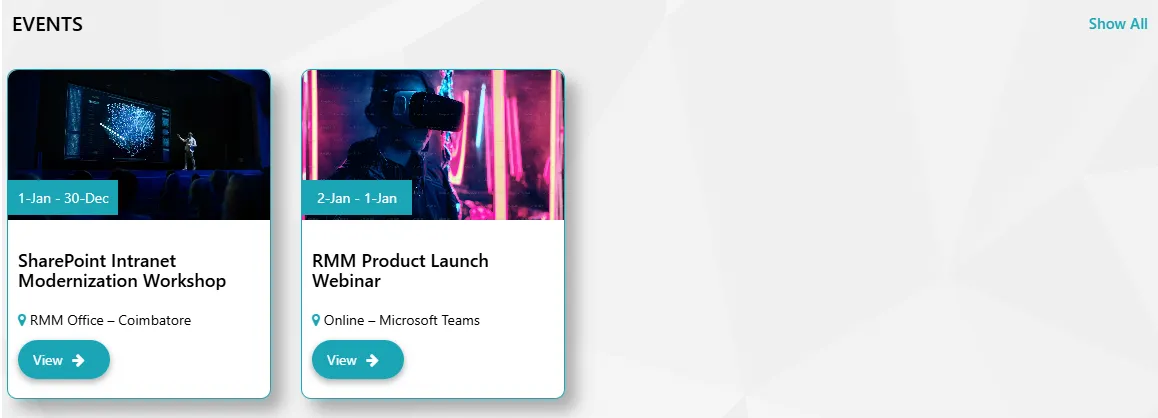
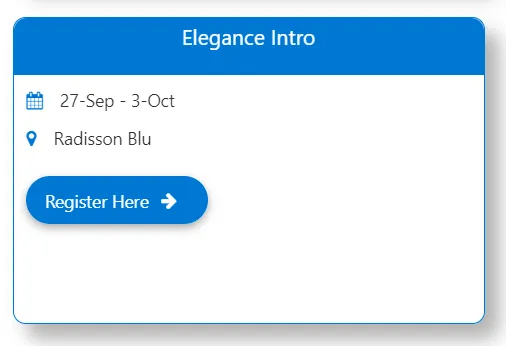
Keep your organization informed with an engaging Upcoming Events showcase for your SharePoint intranet. Spotlight workshops, webinars, training sessions, town halls, and product launches. Powered by a SharePoint list, it automatically surfaces relevant future events with crisp cards showing the date, time, venue, and one-click access to registration details.
- Date Range: Show events starting from today, within the next X days/weeks, or between custom dates.
- Status: Filter visibility using Active, Expired, or custom tags like "Live Now".
- Category: Group events by department or type (Webinar, Training, All-Hands).
- Display Order: Sort by earliest date, featured priority, or manual numeric order.
- Status Toggle: Enable or disable individual event items without deletion.
Best suitable for:
- Internal Training & Learning Sessions
- Product or Feature Launch Events
- Company-wide Announcements
- Town Halls & Leadership Meets
- Webinars & Knowledge Sharing Programs
- Team Building & Social Events
- Employee Recognition & Awards Ceremonies
- Holiday & Cultural Celebrations
- Onboarding & New Joiner Welcome Events
Grid Links Navigation
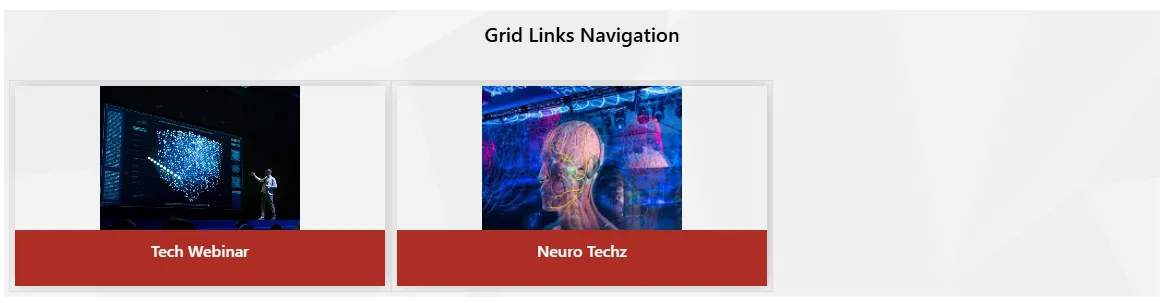
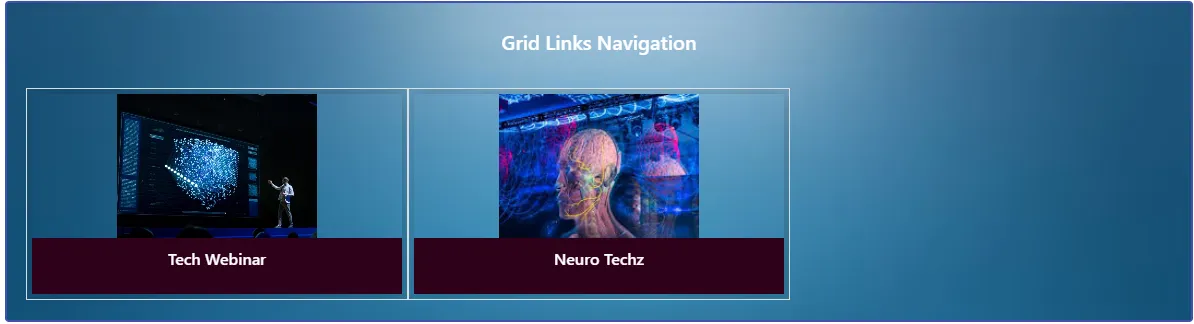
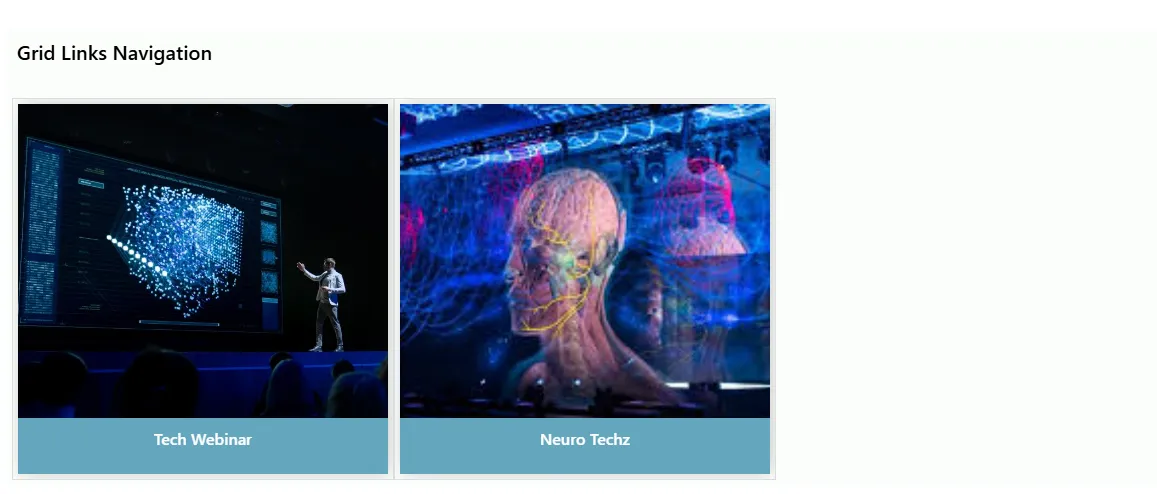
The Grid Links Navigation component presents image-based shortcut tiles in a responsive grid layout, enabling quick access to key intranet pages, tools, and business resources. Content is dynamically driven from a SharePoint list for easy administration.
- Grid Columns: Configure a responsive column layout for different screen sizes.
- Link Target: Open links in the same tab or a new tab.
- Image / Icon: Visual asset displayed for each grid navigation tile.
- Redirect URL: Set the destination page or external link for the tile.
- Display Order: Control the sequence of icons within the grid.
- Status: Toggle visibility for individual navigation items.
Best suitable for:
- Department Navigation Panels
- Tools & Applications Access
- Quick Access Dashboards
- Service & Resource Hubs
- Frequently Used Intranet Links
Team Members Slider



The Team Members Slider component presents employee profiles in a clean, responsive slider layout. It displays profile images, names, and roles, helping users quickly identify leadership teams or department members. All content is dynamically managed from a SharePoint list.
- Profile Image Style: Choose between circular or square image formats.
- Name: Display the employee or member's full name.
- Role / Title: Visibility control for job titles and designations.
- Profile Link: Connect to an internal profile page or external LinkedIn profile.
- Display Order: Control the sequence of team members in the slider.
- Status: Enable or disable individual profile visibility.
Best suitable for:
- Leadership & Management Showcases
- Department or Project Teams
- Employee Directory Highlights
- New Joiner Introductions
- Organization Structure Overview